
Trouble Accessing the Club with the URGE FITNESS App or 24-hour Access Door?
If you’re a member having trouble scanning into the facility using your URGE FITNESS App, QR code, or the clubs 24-hour access door- don’t panic. In almost all cases, the system is working correctly and the issue is related to the way the QR code is being displayed on a member’s phone (brightness, glare, privacy screen protectors, phone settings, etc.). This page walks you through quick fixes that solve most issues in under a minute.
Is URGE FITNESS’ system working?
How we verify daily (staff process):
- Staff confirm check-ins are appearing on our front desk check-in monitoring system. If our internal software program is running, this confirms proper connection from our member database to our 24-hour access door.
- Staff also visually verify members are successfully scanning in throughout the day.
- If there is ever a true outage (power/internet loss), URGE management is notified immediately and we communicate when service is restored. Please be sure to follow us on all social media channels for live updates.

Are you eligible for 24-hour access?
- Your account must be current. If there is any past due balance, 24-hour access will not work until your account is brought up to date.
- “Classic” memberships do not include 24-hour access . Classic members must check in at the front desk and can only access the facility during front desk operating hours.
Why your phone can cause QR scanning issues
Common causes:
- Screen brightness too low (or your phone auto-dims)
- Battery Saver / Low Power Mode reduces brightness/performance
- Glare from sunlight reflecting on your screen
- Privacy screen protectors (these reduce visibility and contrast)
- Night Shift / Blue light filter / Extra Dim lowering contrast
- App not refreshed or phone connection issues (dead zone, data off)
- Cracked screen or heavy smudges distorting the QR pattern
Quick fixes: What to do on your phone (in order)

Step A: Make the QR code easy to read
- Set your screen brightness to 100% (just for the scan).
- Turn OFF:
- Low Power Mode / Battery Saver
- Extra Dim
- Night Shift / Blue light filter
- If you have a privacy screen protector, disable/remove it temporarily to test.
- Wipe your screen clean.
Step B: Refresh the app
- Force close the URGE FITNESS app and reopen it.
- Make sure the URGE FITNESS app is updated.
- Restart your phone if needed (annoying, effective).
- Ensure you have cell data on (not airplane mode), especially if you’re outside.
Step C: Fix common settings issues
- Turn Automatic Date & Time ON (important for time-based access credentials).
- Turn off any high-contrast/invert colour accessibility settings temporarily.
How to scan a QR Code correctly
- Hold your phone still beneath the reader (don’t wave it).
- Center the QR code below the reader window.
- Start about 4–8 inches away, then adjust slightly closer/farther if needed.
- Give it 1–2 seconds to read.
- If you’re in bright sunlight, tilt the phone slightly to reduce glare.
- Don’t “swipe” the phone quickly across the reader.
- Don’t scan with the screen dimmed.
- Don’t scan at extreme angles or from far away.
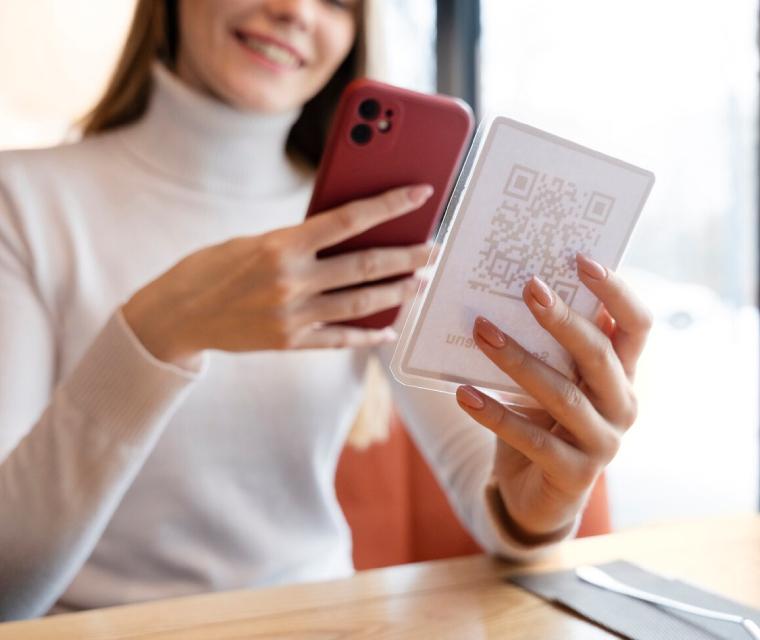
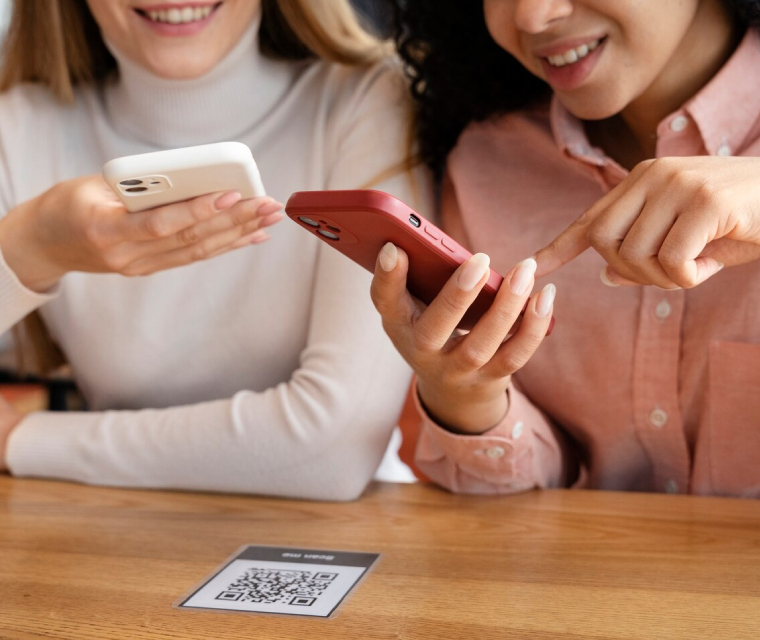
How the QR reader actually reads your phone screen
- Captures an image of the QR code (like taking a photo).
- Detects the QR corners so it knows the code’s orientation.
- Reads the grid pattern and decodes the data.
- Sends that decoded data to the access system to confirm you’re authorized.
- Strong contrast (bright screen)
- Low glare (reduce reflections)
- A steady image (hold still briefly)
Still having trouble? Here’s what to do next
Option 1: Use in-app support
If you’ve completed the steps above and the QR code still won’t scan, please contact the app support team directly. They can help with device-specific issues (phone settings, app version, QR rendering, etc.).
To speed things up, include both screenshots below in your email:
- Screenshot #1: The Check-In QR Code screen from your URGE FITNESS app.
- Screenshot #2: The Settings page from your URGE FITNESS app
- Tap the top-right profile photo/initials
- Scroll to the bottom and screenshot where it shows “Powered by FitBudd” and the app version
Option 2: Visit the front desk during staffed hours
If you’re still having trouble after following this guide, come see our staff during front desk hours. We can try basic troubleshooting with you and confirm your account eligibility, but please understand we can’t modify personal phone hardware or manufacturer settings beyond standard troubleshooting.
We know it’s frustrating to be locked out. In nearly every case, a quick brightness/refresh/glare fix gets you right back in. Thanks for taking a minute to run through the steps above!